

Documentation
iPhemeris Astrology Software for iPhone & iPad
iOS Documentation
Business Model Change
In Nov. 2025 we switched the business model to a purchase of base features with an "All Access" subscription that enables Premium features. No previously purchased feature, in the base product or purchases as an In-App purchase, will ever be taken away. Apple App store policy requires developers to continue to make previously purchased features available for as long as the product they were purchased in is available in the App store.
If you don't see something you purchased, don't panic! It is still there somewhere. Check this documentation and especially the What's New section. If you can't find it, contact support.
This change will be good for everyone going forward. It enables us to continue to fix bugs and maintain the software and provide continual improvements to the base product. And, more importantly to add many more premium features. We had to make this change to be able to increase the pace of innovation and improvement; to continue to add new features and also to keep up with the many changes Apple is making with Glass UI in the 26.x macOS and iOS operating systems. Apple is constantly re-arranging the deck chairs requiring continual maintenance simply to stay functional. If iPhemeris does not keep up, it will quickly become non-functional or incompatible with newer Apple platforms.
What’s New
Check here for the latest new features, enhancements and bug fixes.
If you are not seeing an update you think you should, check that your iOS has been updated to a version equal to or later than what the current iPhemeris update requires.
Version 13.x
Version 13.0 was released June 18, 2026. It adds a major new feature for subscribers:
AstroCartography
If you already subscribe, you can try it now. You can find the feature:
- iPhone - It will be on the More Menu (Tab furthest to the right with 3 dots). Access it from there or move it onto one of your tabs.
- iPad - It will be at the far right of the tab bar at the top of the iPad.
Two small maintenance releases followed 13.0 and addressed varios minor issues.
Version 12.x
iPhemeris version 12.x requires iosOS 18.6 or newer.
As always, we strongly recommend you do not get too far behind the macOS update cycle. iPhemeris generally avoids requiring the latest, bleeding edger version of macOS, but we do expect people to stay reasonably current.
Version 12.2.2
Version 12.2.2, released June 5, 2026, is a maintenance release and addresses the following issues:
- FIXED - AI Advisor (OpenAI) sometimes returns an empty response.
- FIXED - The Aspect Report had incorrect Applying / Separting indicators. The Grid Report was correct.
- FIXED - Chart & AI Conversation could be duplicated and deleted might reappear.
- FIXED - iPhemeris on iPad crashed when sent to the background and appeared to forget where you last left it.
Version 12.2
- NEW: AI Advisor can use Google Gemini and Anthropic Claude in addition to OpenAI. You may use any or all of them.
- NEW: A search bar is added to saved AI Conversations.
- FIXED: AI Saved Conversation Delete now works properly.
- FIXED: Printing of Midpoint reports now works.
Version 12.1
Version 12.1 adds a major new feature to iPhemeris: AI Advisor!
iPhemeris version 12.1 requires iosOS 18.6 or newer.
AI Advisor delivers comprehensive, professional-level chart interpretations with a psychological and spiritual perspective. Engage interactively to explore natal charts, current transits, and synastry. Refine timing techniques, deepen your understanding of astrology, and gain clear, growth-oriented insights.
- New - iPhemeris AI Advisor provides AI driven analysis of:
- Chart Placements & Aspects.
- Sysnastry between charts.
- Ask questions about the analysis or placements or aspects.
- Ask astrological question about specific placements or transits.
- All conversations are saved to iCloud with your charts and can be resumed at a later time.
- Improved
- On iPad in Landscape, the Chart list and a selected chart are side by side.
- Printing and Sharing menu are combined into a single button.
- FIXED - Various minor issues have been fixed.
Introduction
iPhemeris® © 2026 for macOS and iOS is wholly owned, developed and operated by Clifford Ribaudo and iPhemeris LLC.
About
iPhemeris uses the Swiss Ephemeris which is based on the Jet Propulsion Laboratories (JPL) DE431 Ephemerides and the US Naval Observatory equivalent for Asteroids. It offers sub-second accuracy to within .001 seconds of arc.
The ephemeris included with the purchase of iPhemeris covers 1700 AD to 2995 AD. The Extended Ephemeris, included with an All Access subscription increases coverage to 7700 years (4700 BC to 2995 AD). The date range applies to all iPhemeris features.
iPhemeris uses New Style Gregorian Calendar dates starting October 15, 1582 and Julian dates or Old Style for earlier dates. However, be aware that various countries adopted the Gregorian calendar at other times; for example, Great Britain didn't switch until September 1752. Therefore, adjust your dates accordingly.
When using the Extended Ephemeris, enter new style dates after Oct. 15, 1582 and old style dates prior. Currently iPhemeris does not support proleptic Gregorian dates for dates prior to 1582.
Note: We use translation services, but Astrology is a special discipline and many astrological terms have dual meanings. If you notice anything out of context or incorrect in your language please notify support.*
Support
iPhemeris Support is very responsive to email. We typically respond within hours and will do our utmost to help.
Before contacting support, please make a thorough review of the documentation. Check the:
- Settings sections.
- Sections on Preference.
- FAQ Frequently Asked Questions
Many basic questions are already answered in these places.
If you do in fact find a bug ... relatively rare and usually not something obvious like an incorrect ascendant ... then we may ask your help to diagnose it. We might ask for a crash report or if you wish to be a tester of a software fix. Your assistance in these matters is always appreciated.
Getting Support
Email us using the iPhemeris Help menu in the menu bar at the top of the Mac screen: Help → Email iPhemeris Support. Sending email via that button includes information in the email (iPhemeris and macOS versions) that helps us to diagnose problems.
When asking questions about charts:
- Send a screen shot of the chart:
- Screens shots should include the information in the upper left of the chart.
- Don't allow Apple mail (or whatever you use) to downsize the image to small.
- If your question is about difference between an iPhemeris chart and a chart obtained via other means, include a screen shot of the other chart also. Questions like: "Why is my iPhemeris chart different from the chart I got before, or from x?", without the other chart, don't provide any context and we have no way of knowing what you are looking at or what setting might be different.
- If you are getting a chart with an unfamiliar Ascendant, please review the documentation on time zones. Wrong time zones are the most frequent cause of issues with MC & Ascendants.
- When asking about something else:
- Provide a clear description with as much information about the issue as possible.
- Include the version of iPhemers and macOS you are using.
NOTE: Posting negative reviews is not the fastest or best way to get our attention. It can take us weeks to notice and we often have no way to diagnose your problem or the bug if that is in fact what it is.
Frequently Asked Questions
1) The iPhemeris Ascendant is not what I expected, why not?
The most common causes of this are, in this order:
- A different time zone.
- Check that the time zone of your iPhemeris chart matches whatever you are comparing it to.
- iPhemeris uses standard time zone notation; locations West of GMT are - locations East are +.
- A different time. Check if you entered AM instead of PM or vice versa.
- A different house system.
- The chart is displaying Tropical positions when you intended Sidereal.
- A different location.
2) Why does iPhemeris get a different time zone for a location?
Time zones are difficult. There were no global standards adopted until recently. iPhemeris looks them up using a service on the internet.
To ensure iPhemeris can look up the correct time zone, when erecting a chart follow these steps:
- Enter the date.
- Enter time. Do not adjust times for Daylight Savings. Enter them exactly as they appear on the birth certificate.
- Enter location via the map.
- Use the time zone lookup button *after the previous steps. For time zone lookup to work correctly it must have date, time and place.
- Do not use Local Mean Time except for very old dates and places when no time zone standards existed.
If your time zone still does not match what you expected, read the section on Time Zones in this documentation for more details.
you may have to do some research to verify what the correct time zone is. Do not assume the one iPhemeris looked up is wrong. There are many errors in one of the frequently used atlases.
3) I use iCloud, but charts are not syncing to all devices?
iCloud update frequency is not under iPhemeris control, Apple devices decide when to send data to the cloud. Apple typically syncs devices pretty quickly, but several things can affect it:
-
Mobile devices will not sync if you do not allow data over mobile and the device cannot get a WIFI connection.
-
If you run out of iCloud storage space new data will not be uploaded to iCloud. Check that you did not hit a storage limit. If you did, buy more space from Apple or delete something in the cloud.
-
If you are not using the latest (or compatible) versions of iPhemeris on all device, there can be a database compatibility mismatch. The iPhemeris database used by newer versions of iPhemeris can be incompatible with older versions of iPhemeris. iCloud sees the incompatibility and will not sync incompatible database records. The solution is to update iPhemeris on all your devices.
Settings
Changing Tab Order
iPhone The order of iPhemeris feature Tabs (at the bottom) can be re-arranged via the More menu on iPhone devices. The more menu is on the right most tab with 3 dots:
- Tap the More button (far right).
- Tap the Edit button (upper right) to display the More Edit menu.
- Re-arrange Tabs by dragging them left or right.
- Drag a feature not on a tab from the list above onto the tab you want to assign it to.
- Tap the Done button to finish and save changes.
Functions which don’t fit onto the Tab Bar are always available on the More menu.
iPad On iPad's with the new style Tabbar at the top of the screen, do a long press on the bar and rearrange or hide tabs as desired.
Ephemeris
Geocentric / Topocentric / Heliocentric
This is a global setting and is used by all iPhemeris features.
- Charts use this as the default when adding a new chart but it can be changed for an individual Charts at anytime from the bottom of the Chart editor.
- Topocentric and Heliocentric capabilities are are included with an 'All Access' subscription.
- Geocentric - most users should use this.
- Topocentric - the view of the sky from the surface of the Earth at the exact location and elevation at that spot. Topocentric data requires elevation and iPhemeris will attempt to look it up when you set the location using the Map.
- Heliocentric – the view of the heavens from the Sun.
Tropical / Sidereal
- Applies to most iPhemeris features. Charts use the value as a default but it can be changed for individual Horoscopes from the Chart editor.
- Sidereal requires an Ayanamsa other than Tropical to be selected in order to notice any difference.
Ayanamsa
When a feature is displaying Sidereal data, this Ayanamsa settings is used to calculate the difference from Tropical. If you use sidereal data then you must also pick one of the pre-defined Ayanamsa, or set a custom value. If you did not select an Ayanamsa, you will see Sidereal Tropical displayed on the chart wheel (this is not correct), and your chart will not be what you expected.
You can either:
- Pick one of the well known pre-defined values from the list.
- Or, set Your Own custom value. To set a custom value, choose Your Ayanamsa at the bottom of the Ayanamsa list and enter a value in the place provided for it. -- Enter a value for the Epoch Jan 1, 2000. iPhemeris will interpolate the correct value for other dates. -- To calculate the correct value, use this formula: ValueNow – ((CurrentYear – 2000) x 0.01396887831940).
Note: The degree offset from tropical positions for pre-defined Ayanamsa are listed at the end of this documentation. Values are for the Epoch starting Jan. 1, 2000. iPhemeris adjusts those to the date of the chart. It does this using the mean rate of annual precession (0.01396887831940° per year).
Lunar Nodes & Black Moon
These are global settings that determine if the TRUE or MEAN values are used.
- The True values can vary significantly with time.
- If you see differences in the related positions when comparing with charts created by other software check which they are using.
- Lunar Apogee and Lilith are the same thing.
Precision: Toggle display of Ephemeris data between DD.MM.SS and DD.MM.
Ephemeris Time Zone
- Use standard Time Zone notation. Locations East of Greenwich are positive (+) and West negative (-).
- The Ephemeris does not automatically adjust for Summer/Winter time.
- This setting applies only to Ephemeris and Calendar Tabs.
Hour: Sets the hour in the Time Zone for Ephemeris and Calendar displays. E.g. if the Ephemeris Time Zone is set for GMT (0) and Hour is set to 12:00, tables display Noon GMT positions.
Display / Colors
Set the color schemes used on tables and charts.
- Ephemeris Colors: Choose a color scheme for Ephemeris Tables.
- Calendar Colors: Choose a color scheme for Calendar Pages.
- Graphic Ephemeris Colors: Choose a color scheme for the Graphic Ephemeris.
- Chart Colors: Choose a color scheme for Charts.
- Sky Now Color: Choose the color scheme used by Sky Now.
Custom Color Scheme
Users of the Mac version of iPhemeris can create a Custom Color Scheme for use with Charts and SkyNow from Mac iPhemeris Preferences. That color scheme will be saved to iCloud automatically and will be available for use by any iOS version of iPhemeris connected to iCloud.
To use your custom color scheme tap the Chart Colors or Sky Now Colors row and select the User Defined option at the bottom. It will only be enabled and selectable if your scheme has been saved and uploaded to iCloud.
Planets & Chart Points
Select which Planets, other points and Fixed Stars and other points are displayed for the various features. Fixed stars are included with an 'All Access' subscription.
- Ephemeris: Select planets & points displayed on Ephemeris pages.
- Graphic Ephemeris: Select planets & points displayed on the Graphic Ephemeris tab.
- This setting ONLY applies to Graphic Ephemeris view.
- The Graphic Ephemeris on Chart & SkyNow reports, uses the Chart or SkyNow wheel and report settings.
- Aspect Calendar: Select planets & points shown on Aspectarian Calendar.
- Transit Calendar Chart (Radix): Select planets & points shown for Radix Chart on Transit Calendar.
- Transit Calendar Sky: Select planets & points in sky used on Transit Calendar.
- Charts & SkyNow – These each have their own settings:
- Wheel settings control which points are displayed on the Horoscope wheel and the horizontal overlay lines on the Graphic Ephemeris in Chart or SkyNow Reports.
- Report settings control which points are displayed on the Reports and the Graphic Ephemeris planet lines (wavy ones).
- Fixed Stars - Select the stars you wish to show on your Charts and Reports.
- Pluto Symbol: Select your preferred symbol for Pluto.
- Earth Symbol: Select your preferred symbol for Earth.
- Eris Symbol: Select your preferred Eris symbol. Eris was discovered after the astrological community stopped assigning symbols to the multitude of planetoids being discovered. These are the two most frequently used.
- Vulcan Symbol: Select your preferred symbol for the hypothetical planet Vulcan. Said by HP Blavatsky and Djwhal Khul (D.K.) to be inside the orbit of Mercury. It is possibly etheric and not dense physical.
- Uranians: Uranians are included with an 'All Access' subscription. If you do not wish to see these hypothetical planets in your lists, disable them with this switch.
Fixed Stars Panel
The fixed stars panel shows the approximately 800+ visible stars which the unaided human eye can see. There is quite a lot of mythological and ancient lore about these and they are very interesting to investigate astrologically.
The list functions like a fixed star Ephemerides and shows the stars current position in the sky. Stars move very slowly, and according to the rate of precession.
Star names and constellations are localized into the languages the iPhemeris user interface support. We used AI to do this and it may not be great. User feedback will help us understand if we should have an option to disable localization for star names.
The Star List
Each star in the list shows:
- The common name in blue.
- The current position in the Tropical zodiac.
- The stars astronomical Greek letter designation and the constellation name which it is part of (gray).
- The show on Chart Wheel and Reports check boxes.
Search & Filter Stars
- Search Bar - You can search for stars by their name or the constellation they are part of.
- Sort & Filter - There are 3 sort buttons and 1 filter button:
- Name - Sorts the list alphabetically.
- Longitude - Sorts the list by zodiacal longitude so, in sign order through the 360° of the zodiac.
- Constellation - Sorts the stars by constellation which are listed alphabetically.
- Selected - This filters the list to show only the stars you have selected to display on a chart or report.
Currently, Stars will appear on all reports if you check their respective Report Box, except the Graphic Ephemeris. No fixed stars on the Graphic Ephemeris.
Chart Defaults
Chart defaults settings determine how the Chart wheel looks and also what to pre-populate some fields with when Adding new Charts to your database. All of these settings can be changed for individual charts via the Chart Edit window.
House System – The default house system used on new charts. Can be changed f
Place – The default location set on new charts.
Use 24 Hour Time – Forces iPhemeris to always use 24 hour military style time regardless of locality settings (zero is midnight, 00:05 is 5 minutes after midnight).
Show Aspects On Wheel – Toggle ON/OFF display of aspect lines in the center of the wheel. This has no effect on reports.
Show House Number – Toggle ON/OFF display of house numbers on the wheel.
Label House Cusps:
- OFF – Astrological Signs are displayed in the center of each zodiacal sign and degree marks are shown around the wheel. This gives the wheel a more European style.
- ON – The point where the house cusp intercepts the sign is labeled in the outer wheel. This can mean that in some cases not every sign is labeled in the outer wheel (but every house cusp is).
Always Show Mc & Asc – Toggle ON/OFF display of Asc, Mc, Ic when those points are the same as one of the house cusps in the House system being used.
Show Minutes on Wheel – Toggle ON/OFF display of minutes on wheel. Minutes never display on tri-wheel.
French Wheel Style – When ON this causes the appearance of the horoscope wheel to display in a manner preferred in France. It has the effect of disabling some of the other settings in this section. This wheel style only works for single charts and will revert to other styles and settings for Bi and Tri-wheel.
Dotted Line for Separating Aspects – When ON dotted lines are drawn on the wheel for separating aspects and solid lines are used for applying. When OFF, solid lines are used for both applying and separating aspects and dotted lines are used for minor aspects.
Degree Marks on Wheel – Toggle ON/OFF the degree marks around outer edge of wheel.
Draw Bold Axis Cusps with Arrows – Draws bold arrows on wheel at ASC/DSC and MC/IC cusps.
Show Nakshatra – Toggle ON/OFF display of Vedic Nakshatra divisions (27) with the abbreviation for each. Nakshatra will use whatever Ayanamsa is selected in Ephemeris settings, so if you generally use Tropical charts, make sure you set an Ayanamsa in the Ephemeris section of iPhemeris settings.
Show Bounds/Terms – Will display the Traditional Astrology “Bounds” or “Terms” around the wheel with either the Egyptian or Ptolemaic rulers.
Decanates – Can be displayed around the edge of the chart wheel in one of 4 styles:
- Off – none at all.
- Empty – thin, gray, 10 degree segments.
- Modern – Decanates containing Modern rulers.
- Traditional – Decanates containing Traditional rulers.
- Esoteric – Decanates containing Esoteric rulers.
Location +Now Chart – Specifies which location the Now chart uses when displaying a Chart +Now wheel.
- Current – The last known device location.
- Natal – The location set for the chart on the inner wheel.
- Default – The location you set as the default location in the Chart Defaults section of iPhemeris Settings.
Progression Defaults
Progression Defaults – Changing default Progression settings does not change the style used on charts already created and in your chart database.
- Progressed Planets – The default style used to Progress the planets, bodies and any other point derived from their positions.
- Progressed MC & Cusps – The default style used to Progress the MC and other House cusps.
Progression Types & Terminology
One often sees lack of clarity or confusion relative to the distinction between the terms Progressions and Directions. iPhemeris uses them in the following manner:
-
Progression - Moves the planets, bodies and angles in time, based on the actual planetary motion during the elapsed time between the date of the Natal or Radix chart, and the date of the Progressed chart.
- Progressions typically produce positions that can be found in an Ephemeris on the progressed date.
- Progression techniques produce charts where the angular relationships are constantly changing over time, just as they do in the sky.
-
Direction - Move all planets and points by the same amount or arc, either degrees longitude or Right Ascension (RA), depending on the type of progression used.
- Directions often produce positions that bodies did not occupy on the date of the directed chart. For example, Solar Arc directions move everything by the longitude the Sun moves. Mercury does not move at the same rate and will be shown in a position it was not actually in on the date of the directed chart.
- Directions are typically based on the Sun's arc in Longitude or RA, but they can also be based on the movement of other bodies.
- Currently iPhemeris offers directions based only on the Sun. Direction techniques keep all the angles between the directed elements the same.
Progression - Planets
-
Secondary Progressed – Planets & other bodies are moved 1 day for each year and fraction thereof between the date of the natal or radix chart, and the date of the progressed chart. Everything is shown in their actual position on the implied Secondary progressed date and time. iPhemeris calculates the exact interpolated position to the second. For example, in a Secondary Progressed birth chart for a person 30 years and 6 months old, you will see that the positions shown on the progressed chart are between the Ephemeris values on the 30th and 31st days after the birth date (accounting for time, timezone and location differences).
-
Solar Arc in Longitude – All planets are moved the same number of degrees (in longitude) which the Sun moved as calculated by the Secondary Progressed technique described above. Using this style of progression, planets will be in positions they never actually occupied (as a group) in time and space. For example, inner planets move faster than 1 degree per year and outer planets move less than 1 degree per year and so moving them all together at the rate of the sun's movement creates a configuration that never actually exists.
Progression - Cusps
-
Solar Arc in Longitude – The MC is progressed by the Sun's Solar Arc in Longitude from the natal or radix date to the progressed date. The Ascendant and cusps are calculated from the progressed MC's implied Right Ascension. Solar Arc in Longitude uses the distance the Sun travels along the plane of the Ecliptic.
-
Solar Arc in RA – The MC is progressed by the Sun's Solar Arc in Right Ascension from the natal or radix date to the progressed date. The Arc of RA is applied to the natal RAMC and then used to derive all the other cusp and sensitive points. Solar Arc in RA uses the distance the Sun travels along the Equator.
-
Naibod in Longitude – The average daily motion of the Sun in longitude (360°/365.24219879) between the natal date and the progress date is added to the MC and which is then used to derive the other sensitive points.
-
Naibod in RA – The average daily motion of the Sun in longitude (0° 59′ 8.33″) between natal date and the progressed date is added to the MC and which is then used to derive the other sensitive points.
-
Quotidian – Calculates the cusps using the actual date/time of interpolated progressed date. This is useful for progressing and doing Hoary analysis because the progressed cusps change throughout the year according to the fractional portion of the year of the radix. If you don't understand this explanation then use Solar Arc in Longitude.
-
Solar Arc Directed – MC, ASC and cusps are moved the same number of degrees in longitude the Sun moved, using the Secondary Progression technique.
Part of Fortune Calculation
Part of Fortune – Most ancient authorities advocated using a different algorithm for day and night births. However, due to a mis-translation of Ptolemy's writings many Astrologers commonly believe he advocated using the same formula for day and night births. Recent translations make it clear he did not. It's your choice, iPhemeris offers both:
- Different for Day and Night Births (default):
- Part of Fortune for Day Birth = Ascendant + Moon – Sun
- Part of Fortune for Night Birth = Ascendant + Sun – Moon
- Same for Day or Night Births: Part of Fortune = Ascendant + Moon – Sun
Orb Settings
Orbs for each aspect that iPhemeris supports can be individually set for each of the 4 Features that use them:
- Charts
- Sky Now
- The Aspect Calendar
- The Transit Calendar
Chart & Sky Now Orbs
Orb settings for Charts & Sky Now have been enhanced and work differently from the older style orb settings used for other features.
- The check box next to the chart glyph toggles aspects ON/OFF on the wheel.
- The check box next to the report glyph toggles aspect ON/OFF in reports.
- There are separate Orb settings for:
- Planets, - for applying, + for separating
- Luminaries (Sun & Moon)
- Fixed stars, only 1 setting used for both applying and separating.
Sky Now Settings
By default Sky Now and Houses Now use a continuously updating device location. However, they can be locked to a specific location so that they do not change when the device moves. For example, you might want to lock it to the location of the New York Stock Exchange.
Place – The location used when Location Services are not available, or when Always Use This Location setting is set to ON.
Always Use This Location:
- ON – locks the location used by Sky Now and Houses Now to the location set on the Place row.
- OFF – the location used by Sky Now and Houses Now updates when the device location changes. Location movement sensitivity is set to not update unless the device moves more than 8000 meters (approximately 5 miles).
The rest of the Sky Now settings work the same as those for Charts. See the section above for Chart Settings.
Note: iPhemeris does not collect or use location data for any other reason and no location data is sent to iPhemeris servers.
Calendar Settings
Select how you prefer Ephemeris pages, Aspect and Transit Calendar features to display weeks. They can start on either Monday or Sunday.
The Transit Calendar displays transits to one of your saved charts. To use it you must first assign one of your charts as the Radix. To select one:
- Visit iPhemeris Settings.
- Scroll down to the Calendar section.
- Tap Transit Calendar Chart (Radix) row.
- Tap one of your charts to select it and return to Settings.
After selecting a Chart, Transit Calendar will function properly.
Other Settings
Astrologer Information
Add up to 5 lines of text that you want to appear on your charts. It will show up under the wheel in the lower right corner.
Use Internet Atlas
When this setting is ON all features in iPhemeris which require a location, will allow selection of the location using the Map interface. Use of the Map interface requires access to the internet. We do not recommend setting this feature to OFF. When it is off you are required to use other means to lookup the Latitude and Longitude and enter them manually.
Print Defaults
If you have a color printer but wish to save ink, set this ON and iPhemeris will temporarily change the color scheme of the feature being printed to use the Black & White color scheme.
iCloud
Keep this ON to save charts in iCloud and share them with iPhemeris on all your other iOS and macOS devices. This is the recommended setting, we do not recommend turning it OFF. Your astrological charts use very little data, probably less than one large photo. Please keep in mind that if you turn it OFF, you could lose all your Chart data.
See the iCloud Trouble Shootings section at the end of this document if you are experiencing problems with your charts syncing.
Sync Displayed Points
Your settings for which Planets & Points are displayed in each feature can be shared with iPhemeris on all your other devices via iCloud.
- Turn ON the setting next to the feature you want to sync to other devices.
- Leave OFF the ones you want to be used only on that device.
This setting can be ON on some devices, and OFF on others. For example, if you want to use the same settings only on your Mac devices, turn it ON on your Macs and leave it OFF on your iPhones.
AI Advisor API Key
iPhemeris AI Advisor is included with an "All Access" subscription. To use this feature, you must get an API Key for your AI Service Provider account, and add it to iPhemeris.
Currently iPhemeris supports the 3 major providers:
- OpenAI
- Anthropic's Claude
- Google Gemini
You may add more than one service provider and you can use any or all of them, it is entirely up to you. However, you do have to select a default. Change the default to switch between them.
Each API Key is specific to you - and only you - and will enable iPhemeris to use your AI Accounts on your behalf. Your usage is specific to your accounts and you will be billed for your usage by whichever service providers you use. iPhemeris LLC does not benefit in any way or get a commission from your usage of any of the services.
iPhemeris securley stores your API key in your iCloud Keychain so that they are available to use in iPhemeris on all your other devices (iPhone and Mac). You will only need to add them once.
The following instructions explain how to get an API for your Open AI Account only. However, all 3 service providers are different and make changes to their interfaces periodcially. Please refer to your service providers documentation for the current, most up-to-date instructions.
Getting An API Key for OpenAI
To get an OpenAI API Key follow these steps:
- Browse to OpenAI.com
- Login to API Platform. You will see that option when you hover over or tap the login button.
- If you already have a ChatGPT account, you can use the same username and password to login to OpenAI.com (OpenAI and ChatGPT are the same company).
- If you do not have a ChatGPT account, you can either:
- Create a ChatGPT account if you plan to use that also, and then use that to sign into OpenAI.
- Or, create a new OpenAI account.
- Once logged in, click your name in the upper right corner.
- Select API Keys in the left sidebar.
- Click Create New Secret Key
- Answer the dialog questions like this:
- Owned By - You.
- Name - Anything you want but something you will recognize later e.g. iPhemeris AI.
- Project - Default (unless you already have other projects set up).
- Permissions - All.
- Click the Create Button.
- Important!! Use the Copy button NOW** to get the key because after you click the Done*** button you cannot see the key again and you will have to create another.
- Paste it into the place for it in iPhemeris Preferences on the Mac or iPhemeris Settings on the iPhone or iPad.
- Or, save it someplace so you can add it to iPhemeris later.
- You should use this key only for iPhemeris so that you can track usage.
- Your key will not work until you provide a payment method and buy some credits. Follow the billing steps below.
AI API Billing
All three AI service providers: OpenAI, Gemini and Claude have a similar billing model and require you to add a credit card and buy some credits to use their APIs. If you do not add a credit card and buy some credits the services will not work.
*NOTE Currently none of the 3 service providers include API usage in their own desktop services. So, for example, if you subscribe to ChatGPT that does not included API usage. You have to buy and pay for that separately.
How API Usage is Billed
API usage is quite reasonably priced and is based on a rather abstract concept called tokens sent (in) and tokens received (out) as part of the answer. We are still learning about it, but can tell you that a typical Chart analysis on OpenAI costs approximately $0.02 - 0.03 USD (that is 2 - 3 cents).
In our testing OpenAI was the fastest and cheapest service, with Google Gemini not far behind. Claude is currently the slowest and most expensive and our testing showed it generally costing 7x more and taking 3x times longer to respond.
To help you monitor usage and costs, iPhemeris AI Advisor shows the approximate charges (in $USD) of each conversation as well as your approximate Month-to-Date usage. This is not an official billing statement and is provided by us simply as a means to help you understand and monitor usage and costs.
Languages
by Default iPhemeris displays in the primary language set for your device. Use this setting to force iPhemeris to use one of the other supported translations and override your system language settings.
- Tap the Row
- Select one of the other languages.
- Save the selected language by exiting out to settings.
- Restart iPhemeris fully.
Charts
The Charts tab is where you Create, Edit & Display charts. The main view is your database list of saved charts. It will be empty when you first start using iPhemeris. To get started follow the Quick Start steps.
Quick Start
- Tap the Charts tab to enter the Charts view.
- Tap the ‘+’ button located at the lower right of the view, to Add a new chart.
- Enter the required information from top to bottom. You must enter: name, date, time, place & time zone.
- The fastest way to set the correct time zone is to use the Clock button in the upper right of the Map View after you’ve selected a place. Use it after the map crosshairs are positioned on the place you want.
- Leave the Map View and Save the chart.
That’s it, you just created a chart!
Display A Chart
To display a Chart:
- Tap the row with the Chart you wish to display. It will get a check mark next to it.
- Tap the Show Charts button in the lower left.
- Select one of the items in the list:
- Chart – will display single wheel with just the selected chart.
- Chart +Now – will display the selected horoscope in a bi-wheel. The inner wheel shows the selected chart and the outer wheel shows position for “now”.
There is a full explanation of all toolbar buttons and settings in the following sections.
Chart Basics
Chart drawing is done from the Charts Tab. The interface is simple and after familiarizing yourself with a few buttons you should be able to get around quickly and easily.
- Add a New Chart – tap the + button.
- Edit a Chart – Tap the blue Info button on the right side of chart row you want to edit.
- Delete a Chart:
- Swipe left.
- Or, tap the Edit button in the upper right of the screen and then the red button next to the chart.
- Select a Chart (for drawing):
- Tap a row to select that chart (tap again to un-select it).
- When selected it a green check mark appears on the left side of the row. You may select up to 2 charts in the basic version. There is an In-App purchase that will allow selection of 3 (Tri-wheel).
- Un-select all charts – If an item is selected anywhere in the list the Un-Select button appears at the right of the Show Charts button. Tap it to clear all selections.
- Long-Press a Chart – Press the row of the item you want to select for more than 1 second. It becomes selected when the green check mark appears to the left of the row. This clears any previously selected charts.
- Copy a Chart – When 1 (and only 1) chart is selected the Copy button is enabled. Tap it to duplicate the selected chart. Copies save time and are useful for creating Progressed, Relocated or Solar Return charts for use in Bi-Wheels.
- Show Selected Charts – Select 1, 2 or 3 charts (3 requires an 'All Access' subscription) and tap the Show Charts button.
- Searching For Charts – Use the Search Bar at the top of the Saved Charts list to find charts in your chart list. The text entered in the bar will filter the list by Name and Category fields.
Searching Charts
The Chart Search Bar is at the top of the Charts list in all versions of iPhemeris (iOS and macOS) and it works the same way. Any text entered into this bar filters the list to show only matching items.
Text typed into the Search Bar filters charts based on 2 fields in your Charts (it is not case-sensitive):
- The Name field of each chart.
- The Category category field of each chart. You will see the category field when you are editing or creating a chart, under the House System selector on the top panel.
Simple Search Example
If there is a Chart in the database with:
- George Patton in the Name field.
- WW2 in the category field.
You can find it by entering either patton or ww2 into the search bar.
Note: Search uses a word begins with type of search and matches partial words. Keep this in mind when adding categories and searching. E.g. 'w' will match ww2 and women categories and you would need to search for 'ww' to only see charts categorized with WW2.
Categories
The Category field is useful for grouping charts and is better than a folder system. It is better because something can have many categories (policticians, men, women), but can be in only 1 folder.
Categories, sometimes called Tags, are single words separated by a space or comma:
- You can add as many category words as you like.
- The only restriction is that words cannot include the '/' character.
- If you need to create a multi-word category, hyphenate it or put an uderscore between words. Search sees hyphenated words as a single word.
Use categories to filter the list to display only items with matching categories.
For example if you categorized:
- George Patton's chart with: WW2 general
- Dwight Eisenhower's chart with: WW2 general president
Entering the following into the Search bar displays:
- WW2 or general - displays both Patton & Eisenhower.
- president - displays only Eisenhower.
More Sophisticated Searches
Use the '/' (forward slash) character to create more sophisticated searches:
- Text entered to the left of the / character will be restricted to being in the Name field.
- Text entered right of the / will be searched for only in the Categories field.
- Words on the right of the / and which are separated by a space will be combined using AND to enable searching for a combination of categories.
Example
- To find all charts your database with Patton in the Namefield and WW2 in the Categories field enter: Patton / WW2.
- To find all charts in your database where only the Categories had Actor AND German, enter: / actor German.
Displaying Charts
To display one of your saved charts, tap the Charts tab and select the chart row you want to display.
Display 1 Chart
- Select a chart by tapping its row.
- Tap Show Charts in lower left, and select “Chart”.
Display Bi-Wheel With Selected Chart & Chart for Current Place & TIme
- Tap the charts row.
- Tap Show Charts in lower left, and select “Chart +Now”.
Display 2 Charts In A Bi-Wheel
- Select the Chart for the inner wheel.
- Select the Chart for the outer wheel.
- Tap Show Charts in lower left, and select “2 Charts”.
Display Composite Chart
- Select the first Chart to combine.
- Select the second Chart to combine.
- Tap Show Charts in lower left, and select “Composite”.
Display 3 Charts In a Tri-Wheel
This feature becomes available with an 'All Access" subscription. If you subscribe, tap 3 charts.
- Select any three charts.
- Tap Show Charts in lower left, and select “3 Charts”.
Add & Edit Charts
Creating A Natal Or Event Chart
Note: Enter data in the order of the editor fields, top to bottom. Time Zone lookup needs a date, time & place to work correctly.
- Name - Can be anything you want (required).
- Date and Time - When erecting a birth chart, use the time as it appears on the birth certificate. Do not adjust it for daylight savings.
- Location - Click the Edit button to the right of the location data. A Map will drop down. Use the map to:
- Search for a location by name or even street address.
- Or find a location by dragging and zooming in the map view.
- Or, manually enter latitude & longitude.
- The position under the cross-hair is what is used and will be more or less precise depending on how much you have zoomed in.
- FYI: The map requires internet access.
- Time Zone
- Use Find Time Zone button (recommended) to look up the correct time zone.
- Date, Time & Place must already be entered or this button will not work correctly.
- Time zone lookup requires internet access.
- Or, if you know the correct time zone value, you can enter it manually. iPhemeris uses standard time-zone notation:
- Time zones West of GMT are negative (-).
- Time zones East of GMT are positive (+).
- Local Mean Time – This is for very old dates, before time zones. It calculates a time zone from the chart longitude. It is for historical research. Only use it if you know when and how to use it.
- Use Find Time Zone button (recommended) to look up the correct time zone.
- House System - Select a house system to use for this chart. This setting overrides your default setting for this chart only.
- Categories - Add words to categorize your charts. Separate individual words by a comma or space. These can be used in the chart list to search, filter and group your charts.
- Notes - Add and edit notes for this chart.
- Tropical / Sidereal – Individual charts can display either tropical or sidereal positions (tropical or sidereal is no longer a global setting). Sidereal uses the global setting for Ayanamsa set from iPhemeris Settings.
- Geocentric / Topocentric / Heliocentric – Horoscopes can display positions for any of these types of data.
- Topocentric and Heliocentric require an All Access subscription or they are grayed out.
- Topocentric charts need elevation (altitude above sea level). Elevations is obtained when you use the map to get the location.
- If you have an existing chart and are switching it to display Topocentric data, use the Map to get the location again so that elevation is obtained.
Relocated, Progressed & Solar Return Charts
Use the Copy button to duplicate a selected chart, then Edit the copy and add the additional required data.
- Select a chart in the list.
- Click the Edit button.
- Open the section of the Editor that relates to the type of chart you want to create.
Relocation Chart
Relocation charts require the natal location as well as the new location. Follow these steps:
- Copy a Birth chart.
- Select the copy and open the editor.
- Open the Relocation panel by clicking its check box.
- Add the data for the second location using the Edit button to open the Map view.
Progressed Charts
Progressed charts require additional information. Follow these steps:
- Copy a Birth chart.
- Select the copy and open the editor.
- Open the Progression panel by clicking the check box.
- Check the Progress to Now button for a progressed chart that is always progressed to when you display it.
- Un-check the Progress to Now button if you want to set a specific, date and time that will not change.
- Choose a Planet and Cusp progression styles.
Note: Progressed charts can be both Relocated and Progressed.
Solar & Lunar Return Charts
Solar & Lunar Return charts require additional information. Follow these steps:
- Copy a Birth Chart.
- Edit the copy.
- Check the box next to Solar / Lunar Return.
- Select a return type.
- Add the additional information.
Solar Return
- Year - Enter a 4 digit year for the solar return.
- Location - Set location for where the subject was at the time of the Solar Return. Either:
- Use the Edit button to open the map and set it via that.
- Or, click Use Natal and the location will be set to use birth location.
- Time Zone - A time zone is required:
- Enter it manually, or use the Find Time Zone button after year and location are entered.
- Local Mean Time – This is for researchers and should only be used by those who understand how and when to use it.
Note: Solar Return charts cannot also be Relocated or Progressed.
Lunar Return
- Enter a date in the date editor close to the date you are erecting the chart for.
- Use the arrow buttons to find a Lunar Return near the date you entered.
NOTE: If one of the panels you opened and entered data in does not remain selected after leaving the Edit Chart dialog, it is because iPhemeris did not find all the data needed to display that type of chart. Please try again and make sure that you enter all required data.
NOTE: If the chart type does not remain selected after leaving the Edit Chart dialog, it is because iPhemeris did not find all the data needed to display that type of chart. Please check that you have entered all required information.
Chart Toolbar
When a chart is showing, there are a number of controls in the Toolbar located at the bottom of the chart.
Buttons From Left To Right
Share - Allows you to share the currently visible chart via email, text or save it to photos, etc.
Print - The currently visible chart. This requires that your iPhone can find an Air-Print enabled device.
View Reports - Toggle between the chart wheel and Reports:
- Wheel icon – displays chart wheel.
- Grid icon – displays the Report view.
- Use the Tabs at the top of that view to select one of the reports:
- Grid of Aspects.
- Aspect list.
- Point list. -Midpoints requires 'All Access' subscription.
Graphic Ephemeris - Allows the overlay of chart lines on a Graphic Ephemeris. Requires 'All Access' subscription.
Set Time Step - this button sets the time step interval used to advance charts back and forward in time.
- At the bottom of the menu there is an option to hide the time step buttons.
- If you hide it, return to this menu to un-hide it.
Notes – Add or edit chart notes.
Settings – fast way to get to iPhemeris settings to change a chart setting.
Chart Reports
To view Reports for the currently selected chart(s), tap the Grid button below the displayed chart. Use the Tabbar above the grid to view the other reports.
Grid of Aspects
A grid style display of aspects for the currently selected Chart(s). The labels above the grid indicate which charts. When 3 charts are selected there will be a second grid below the top one, scroll down to view it.
Aspect List
A list of aspects for the currently selected Chart(s). The labels above the list indicate which charts and when 3 charts are selected there is a second list below the top one, scroll down to view it.
Points & Elements
A detailed textual list of all placements, houses, house cusps, elements and cardinality. Scroll down to see the list for additional selected charts.
Midpoints
A list of midpoints sorted by Sign or Planet.
Graphic Ephemeris
The Graphic Ephemeris Chart Report is distinct from the main Graphic Ephemeris in the application Tabbar. This one has its own Graph button under the currently displayed Chart. The chart's placements are overlayed on the Graphic Ephemeris using horizontal lines.
- The wavy lines are planet positions in the sky during the selected date range. The wavy lines use the same setting for which planets to display on Chart Reports.
- Horizontal Lines indicate the placements for the currently selected chart. They are shown or not according to the setting for what to show on the chart wheel.
Rectification: Time Stepping
The rectification or time stepping panel is the small panel in the lower right corner of a displayed chart. It displays the currently selected Time Step and arrows that move the chart forward or backwards in time by the selected interval.
IF you no longer see the panel when a chart is displayed, you hid it! Open the menu used to set a time step, scroll to the bottom and select Unhide.
- Advance charts forward or back in time by the selected interval.
- Tap the Red Button to restore time stepped charts to their original settings.
- Note: Progressed and Solar Return charts cannot be Time Stepped.
Note: Time stepping a chart does not change the data in the database.
Using The Map To Find Locations
iPhemeris uses Apple maps technology to find latitude and longitude for places. It is far more precise than traditional Astrological Atlases and can be positioned to an exact location or street address. This is very useful when charts have cuspy issues.
Note: Changes in location of only a few miles can change the ascendant.
- Use standard gestures to scroll and zoom to a location.
- Use the Search Bar to lookup a location.
- To select a place, position the cross hairs over the desired spot on the map.
- Use the Time Zone Lookup button (clock icon in upper right) to get the time zone for the location under the cross hair.
- Time Zone lookup requires that Chart Date and Time are already set to work correctly.
Note: If you prefer to manually enter latitude and longitude (not recommended), you can turn the Map off in Settings. Set Use Internet Atlas to OFF.
AI Advisor - Interpretations
AI Advisor is included with an All Access subscription. If you do not currently subscribe, visit the iPhemeris store at the top of iPhemeris Settings to learn more.
To enable AI Advisor you must do 2 things on OpenAI:
- Get and add an Open AI API Key in the place for it at the bottom of iPhemeris Settings. See the Settings section of the documentation to learn more.
- You must buy some Open AI Credits. This can be done when you get your API Key. It is not expensive, $5 or 10 US Dollars will last a very long time.
On iPhone and iPad AI Advisor is accessed from the below the Chart List or above the currently displayed chart.
About AI Advisor
iPhemeris now includes one of the most powerful astrological tools you have ever used: iPhemeris AI Advisor.
For the first time, iPhemeris goes beyond charts and calculations to provide complete professional-level interpretations directly inside the application. AI Advisor analyzes the charts stored in the iPhemeris database and delivers detailed astrological insight instantly.
AI Advisor evaluates the full structure of a chart, including:
- Planetary Placements.
- House Cusps.
- Aspects.
The result is a comprehensive interpretation of the chart’s dynamics, written in clear professional language suitable for both serious students and practicing astrologers.
Unlike static interpretations, AI Advisor is fully interactive. After generating a report, you can continue the discussion with the AI: ask follow-up questions, request deeper analysis, or explore specific themes.
And, if during the coures of a conversation, the AI asks for additional information to refine its interpretation or answer your questions, you have the tools to provide what it needs!
This interactive approach allows you to investigate any dimension of a chart, including:
- Relationships and compatibility (synastry).
- Life timing and transits.
- Personal development.
- Health and medical astrology.
- Psychological and spiritual themes.
- Practical life questions and decision timing.
Because AI Advisor works directly with the charts already stored in your iPhemeris database, it becomes a research and interpretation partner, helping you explore charts more deeply and efficiently than ever before.
With iPhemeris AI Advisor, your chart database becomes not just a collection of charts—but a living resource for continuous astrological exploration.
Using AI Advisor
iPhemeris AI Advisor panel is accessed by clicking the button with the ChatGPT icon in the Charts and SkyNow toolbars. The panel is easy to use and very flexible. Hover the mouse over a button to display more information about its function.
The panel will always display Analyze buttons for the first two charts currently selected in your Chart Tab's chart list, with one additional button for Contacts between them. These buttons will change to reflect your currently selected charts. On SkyNow, there is only a button for the "Current Sky".
List of Analyses
The left side of the panel displays a list of previous analysis conversations. They are automatically saved to iCloud along with your charts and are available to iPhemeris on any of your devices which support AI Advisor.
- Select a previous conversation in the list to re-read or continue the discussion.
- Add other charts to the selected conversation by clicking another charts Analyze button, or using the Insert Description button.
Buttons Explained
New Analysis - Start a new conversation and which will be saved separately.
Analyze - Analyze buttons appear for the first & second chart currently selected in your list of charts. Click the Analyze button to request a highly formatted, very detailed, analysis of that Chart's Placements, House Cusps and Aspects.
Life Reading - A simpler type of analysis with a lot less detail but which looks at the major strengths and weaknesses in a chart as well as some key points related to type of suitable partner for relationships and direction for career path.
Insert Description - Inserts a complete verbal description of the Chart into the Question box.
- Use this button to ask questions or provide the AI with additional chart data when it requests it during a conversation.
- This button only inserts data into the question editor, it does not send or request anything.
- Use the Send as New Question, or Send as Conversational Question buttons to send inserted data to the AI.
Cancel - This button appears when an analysis is in process, clicking it stops the analysis.
- Once terminated it cannot be completed.
- However, you can ask questions about any portion of the conversation that did complete prior to cancelling.
- And you can insert new descriptions or analysis into the existing portion of the conversation.
Continue - Sometimes the AI will not finish an analysis when it is taking too long. Use this button to instruct it to continue analyzing from where it stopped.
Question / Response Type
- Detailed - This button instructs the AI that you want a more detailed and formal response for whatever you entered into the question box. It can be used in several ways:
- If you just started a New Conversation and want to ask a question about anything, for example: What are the astrological significators of a particular health issue?
- Or, after having obtained a full analysis, use it to explore some aspect of the analyzed chart.
- Chat - This button sends the data in the question box with a request for a brief and lightly formatted response. It can be used in several ways:
- To provide the AI with a Chart description when it asks during a conversation.
- To ask a quick quesstion for which you do not want a more formatted and detailed response.
- Send - Sends the contents of the Question Editor to the AI.
Delete (Trash) - Deletes an Analysis/conversation from your database. This is permanent; deleted charts cannot be recovered.
Save as PDF - Save the entire contents of the currently selected conversation to a PDF file which can be emailed, saved or printed.
Cost - This button displays an estimate (in USD$) of your Month to Date usage. It is only an estimate and we make no claims about its accuracy. See your account on your Service Providers website for your official charges and statements.
Conversation Title Bar
At the top of the analysis panel the title of the currently selected conversation is displayed. It can be edited at any time. Hit return key after editing it to save the changes. Changes are immediately saved to the database.
Also shown just below the title is the estimated cost and token usage for the selected conversation.
Usage
iPhemeris AI Advisor is extremely flexible and capable and there are very few restrictions (other than formatting) placed on it. You can ask it anything you want about a chart or even other subjects! For example, during the course of a conversation you might ask it to also investigate a clients numerology. It can do that amazingly well, including giving you several styles of numerological analysis.
The Analyze buttons request a very verbose analysis of whatever chart you feed it. The formatting for this function is rigid and detailed. It is almost too much information. However, you can at any point, ask the AI to give you a less verbose summary more suitable for a client.
When asking the AI for something:
- Be clear, precise and direct.
- Explain exactly what you want and do not want.
- If you ask for a summary or simpler version of an analysis, tell the AI which topics or themes you want included. For example: life direction, best career path, most suitable type of partner, etc.
The AI has crawled the entire internet of Astrological things and has an amazing depth and breadth of understanding. Use it to explore your charts and how astrology impacts life questions.
Examples
The more you use AI Advisor to explore various aspect of your own or a clients chart, the more you will realize just how powerful a tool it is. To help you get started and to give you some ideas, here are a few of the things we have already tried:
-
Get a detailed analysis of any of your charts, then ask it via one of the question buttons, questions like:
-
Do you see any indications of potential health issues in this chart?
-
What are the best type of relationship partners for this person?
-
What type of career is the person suited for or will excel in?
-
When is a good time (or a time to avoid) to make a business deal.
-
Start a new conversation. Don't give it any chart, simply enter a question into the question box. For example:
-
what are the Astrological significators for some health condition?
-
What type of transit is associated with accidents?
-
Explore a potential crime. Give it several charts,like a persons birth and death chart and ask it:
-
If the death was natural or medical malpractice.
-
Or, if the death might have been a killing made to look natural or like an accident.
The uses are endless. Explore it and let us know your thoughts and feedback. Enjoy, it is an amazing tool!
How AI Services Charge
All 3 AI Services charge based on token usage. Tokens are a fuzzy concept and can be a single word, part of a word, a punctuation mark, or even a blank space. A "question" and the subsequent "answer" get broken up into tokens by the AI engine and billed accordingly. iPhemeris estimates the cost based on the token numbers included in the response during a conversation and which we multiply by the published API pricing for the model we are currently using.
Pricing differs by AI Model. iPhemeris currently uses:
- OpenAI
- gpt-4.1-mini - for chart analysis.
- gpt-5-mini - for question and answer.
- Gemini
- gemini-3-flash-preview - for full analysis and question and answer.
- Claude
- gemini-3-flash-preview - for full analysis and question and answer.
Each model has two charges, one for the question (tokens in) and one for the answer (tokens out).
You can look up the current API Model charges on your service providers website.
Time Zone Lookup
iPhemeris uses an international, open source Time Zone database known as TZDATA. You can read more about it here: TZDATA on Wikipedia
- Time Zone lookup requires Internet access (Wifi or a mobile data connection).
- It requires that the: Date, Time and Location are already set.
- Find Time Zone – This button queries the database for the Time Zone in effect for the data and time at the location.
- Local Mean Time – Calculates a Time Zone based purely on Longitude. This is only recommended for researchers and very old dates.
TZDATA is contributed to and corrected by computer scientists all over the world. It was originally created to be an accurate source of Time Zone data for computer clocks around the world. Computers need to know when a specific location switches between regular and Summer or Daylight time (DT). Due to the various and politically complex dates when places around the world have adopted and repealed Summer Time, the database can sometimes be off by 1 hour in a specific location. This is happening less and less frequently due to continuous updating and improvement. Anyone finding errors can report it to TZData by providing 3 sources proving the error, e.g. newspaper articles, etc. TZDATA is now the most accurate historical record of time zone data and clock changes anywhere in the world.
For USA locations, errors sometimes occur for dates prior to 1966 (when DST was mandated nationwide). When errors of this type occur, it is typically that the date for the switch between DT and DST is incorrect. This will produce an ascendant difference of approximately 15 degrees. If you are seeing an unfamiliar ascendant or mid-heaven value, do not assume iPhemeris is wrong, do a Google search for when Daylight/Summer time was adopted at the place of the chart being cast.
Some software uses an old source of historical time zone and daylight savings changes called the ACS Atlas and which is based on The Olsen Database, the predecessor to TZDATA. Unfortunately, the ACS atlas is known to have many errors, so much so that the developers of TZDATA decided they could not use it as a starting reference point. They analyzed ACS's accuracy and uncovered too many errors. The developers of iPhemeris have also observed over the years many many errors in charts based on ACS. We therefore concluded that the safest approach was not to include it, and we suggest that when a discrepancy arises between TZDATA and a chart obtained from elsewhere, do some research.
Time zones and Daylight / Summer Time are an important subject for Astrologers to be familiar with and it will be well worth your time to study a bit about the subject.
Sky Now
Sky Now displays a continuously updating Chart of the sky using the House System and Location specified in Settings.
- When Location Services are available it uses current location.
- When Location Services are not available or it is locked to a fixed location, it uses the Place specified in Settings.
- iPhemeris is shipped with a default location set to New York City. Change it in Settings.
- The display updates every 5 seconds.
Set Time Step
- Set the interval used to advance Sky Now back and forward in time.
- Show/Hide the Time Step tool.
Note: Time stepping Sky Now stops real-time updates. To resume them tap the red button on the Time Step toolbar.
Time Step Panel
- Advance Sky Now chart forward or back in time by the step interval.
- Start Real-time – This button becomes red if real-time updates have been stopped by time stepping the chart. Tap to return to NOW and resume real-time updates.
Note: If location is not updating and you think it should, check that you allowed iPhemeris to use your location in iPhone Settings.
Ephemeris
The Ephemeris in iPhemeris is a powerful tool that can displays Tropical, Sidereal, Topocentric & Heliocentric data for any location and time around the world.
With a few simple settings, it can be a standard monthly Midnight or Noon ephemeris for any time zone you like! Or, set it for some other time of the day you care about like Stock Market open!
Ephemeris Display
The Ephemeris Tables are the same on all versions of iPhemeris regardless of platform (iOS or macOS):
- Montly pages display a full month of data for planets, other bodies, lunar phases, lunar ingress, lunar “void of course” times & eclipse data.
- Data is grouped into weeks that can be customized to start on Sunday or Monday.
- The Date column shows day and day of the week.
- A GST column displays Greenwich Sidereal Time.
- Two Moon columns are available:
- The 1st displays the Moon's position at the time & time zone you set the Ephemeris to display for.
- A second optional column displays its position 12 hours later.
- Moon and Sun columns are not shown when displaying Heliocentric data.
- Columns for individual planets and other bodies can be toggled on or off.
- Display of planetary longitude is in Degrees, Minutes and Seconds orders.
- The display of planetary declination and latitude is in Degrees, Minutes and seconds. Declination is on the left and latitude on the right.
Which columns are displayed is set from iPhemeris Settings. See the section on iPhemeris Settings above.
Basic Navigation
Manipulate the pages of displayed Ephemeris data with standard touch events:
- Use a 2 finger to swipe gesture, left or right, to move forward or back in time by one month.
- You pinch and zoom gestures to move around a page and zoom in or out.
Ephemeris Toolbar
The buttons explained:
- Back/Forward - Advance the page back << or forward >> 1 month.
- Sharing – captures an image of the page that can be saved or shared.
- Print - Print the current page.
- Dec / Lat - Switch page display between Longitude data and Declination & Latitude.
- Search – Jump to a specific date.
- Now – returns to the current month.
- Tap a row to highlight it, tap again to un-highlight.
Declination & Latitude
The Dec/Lat feature displays standard Ephemeris style, monthly tables of Declination and Latitude for all planets and asteroids included with iPhemeris.
- The table includes two columns for each body: Declination and Latitude.
- Displayed values respect the DMS & DM precision Settings.
- DMS: 25 n 28′ 59″ = 25 degrees North, 28 minutes, 59 seconds.
- DM: 25 n 29 = 25 degrees North, 29 minutes.
- Navigation is the same as for the Ephemeris.
Lunar & Planetary Tables
Ephemeris pages have several tables related to the Moon and Planetary Ingress at the bottom of each page. Some of them require an All Access subscription. Most of them are similar to the various printed Ephemerides in the way the data is presented.
The Various Table Are (left to right):
- Last Aspect (Void of Course).
- Lunar Ingress.
- Planetary Ingress.
- Moon Phase
- Eclipse (if there were any).
- Solstice and Equinox time.
Void of Course Tables
Void of Course Lunar tables are located at the bottom of each monthly page in the lower left.
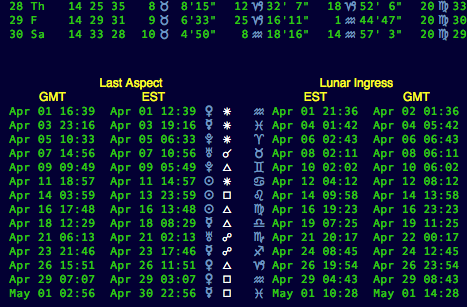
Last Aspect
- Time Columns – There can be up to 3 per table:
- Date & time in GMT.
- Date & Time for the Time Zone and Hour you set in Ephemeris settings panel.
- Date & Time on your device is using when it is different from previous 2.
- Last Aspect – Displays the last planet to aspect the moon and the aspect it made.
Lunar Ingress
- Astrological Sign – Displays the next sign the moon entered after the last aspect it made in the columns to its left.
- Time Columns – 2 or 3 columns following the same rules as the Last Aspect table.
FYI: The moon is considered Void of Course during the period between last aspect it made to any body and the its ingress into the next sign.
Planetary Ingress
This table shows the date & time the listed bodies entered one of the astrological signs.
Moon Phases
This is a standard Lunar Phase table and lists the date & time in up to 3 Time Zones depending on your settings. It lists the exact positions of Moon & Sun at each phase.
Eclipse Tables
If eclipses occurred during the month, this relatively standard eclipse table displays: date, time, duration, magnitude, location of exactitude (lat/lng), gamma and Saros number for each eclipse.
Graphic Ephemeris
The Graphic Ephemeris displays zodiacal positions of the planets using a standard Cartesian graph. On this type of graph data and time is on the horizontal or x-axis, and zodiacal degrees (longitude) is displayed on the vertical or y-axis.
For example, planets are in Aries when shown on the graph between 0° and 30° and they are in Pisces when between 330° and 360°.
Planets are conjunct where lines cross and they are in aspect to each other when they are separated vertically by the degrees of that particular aspect. For example, if the Sun is on the horizontal line labeled 30° (Aries/Taurus cusp) and Venus is on the horizontal line labeled 90° (Gemini/Cancer cusp) they are separated by 60° and are sextile on that date.
When Moon Phase is selected in the planet selector, New and Full Moon are displayed. New moon is shown where sun and moon lines cross and full moon where they are 180° apart.
The Graphic Ephemeris is included with the All Access subscription and adds the following functions to iPhemeris:
- A Graphic Ephemeris tab on the main view. This allows graphical display of planetary longitude & declination.
- An additional Graphic Ephemeris tab in Chart and SkyNow Reports section. On Chart Reports the placements of displayed astrological chart are overlayed on the Graphic Ephemeris as horizontal lines. This makes it easy to see contacts over extended periods of time.
Graphic Ephemeris Toolbar
The main Graphic Ephemeris view on the features tab has a toolbar similar to all the iPhemeris feature tabs. The buttons left to right are:
- Sharing - Various options for sharing a screen shot of the current display.
- Print - Print the chart.
- Date Range - Set the Start & End date of data shown. Be careful selecting too long a range can take a long time.
- Now - Sets the charts Start / End date to six months either side of the current date.
- Harmonic - Choose a harmonic range.
- Declination - Display declination instead of longitude.
Longitude
When longitude is selected, standard zodiacal positions for bodies are displayed. Customize what is shown from iPhemeris Settings.
Data is shown for the selected date range. Use the toolbar buttons to select a range:
- The Search button allows selection of any start/end date supported by your ephemeris.
- The Now button jumps to 6 months either side of now.
Declination
Declination is displayed for the bodies you select from iPhemeris Settings. Declination for most bodies is between -30° (south) and 30° (north) degrees of latitude. Use of harmonic ranges does not make sense for declination and therefore the degree range selector is disabled.
Reading the Chart
If you are not familiar with the display of a graphical ephemeris, then when a planet is in Aries it is shown on the graph between 0° and 30° and if in Pisces, 330° and 360°.
Planets are conjunct where lines cross and they are in aspect to each other when they are separated vertically by the degrees of that particular aspect. For example, if the Sun is on the horizontal line labeled 30° (Aries/Taurus cusp) and Venus is on the horizontal line labeled 90° (Gemini/Cancer cusp) they are separated by 60° and are sextile on that date.
If Moon Phase is selected in the planet selector, New and Full Moon are shown. New moon is shown where sun and moon lines cross and full moon where they are 180° apart.
Harmonic Ranges
The harmonic range selector on the toolbar makes it possible to look for aspects by folding the data over on itself for the selected range. If you are not familiar with how this works, best to leave it set at 360°.
For example, if a range of 90° is set then the vertical scale is restricted to a range of 90° and things at 0°, 90°, 180° and 270° are all displayed at the 0° and appear to be conjunct. This makes it easy to spot aspects for the selected harmonic.
Harmonic ranges can only be used on the longitude display and are disabled when showing declination.
Graphic Ephemeris for Charts
When Graphic Ephemeris is enabled the Graphic Ephemeris button is shown on the Charts and SkyNow Chart View toolbar.
- Data for the Chart on the inner wheel is overlaid on the graph using horizontal lines.
- Which horizontal chart lines are shown on the graph is controlled by the same settings used to display points on the wheel of Chart & SkyNow.
- Which wavy longitudinal lines are displayed is controlled by the settings for displaying points on Chart & SkyNow Reports
- Declination data is not available on the Graphic Ephemeris in Charts or SkyNow Reports.
AstroCartography
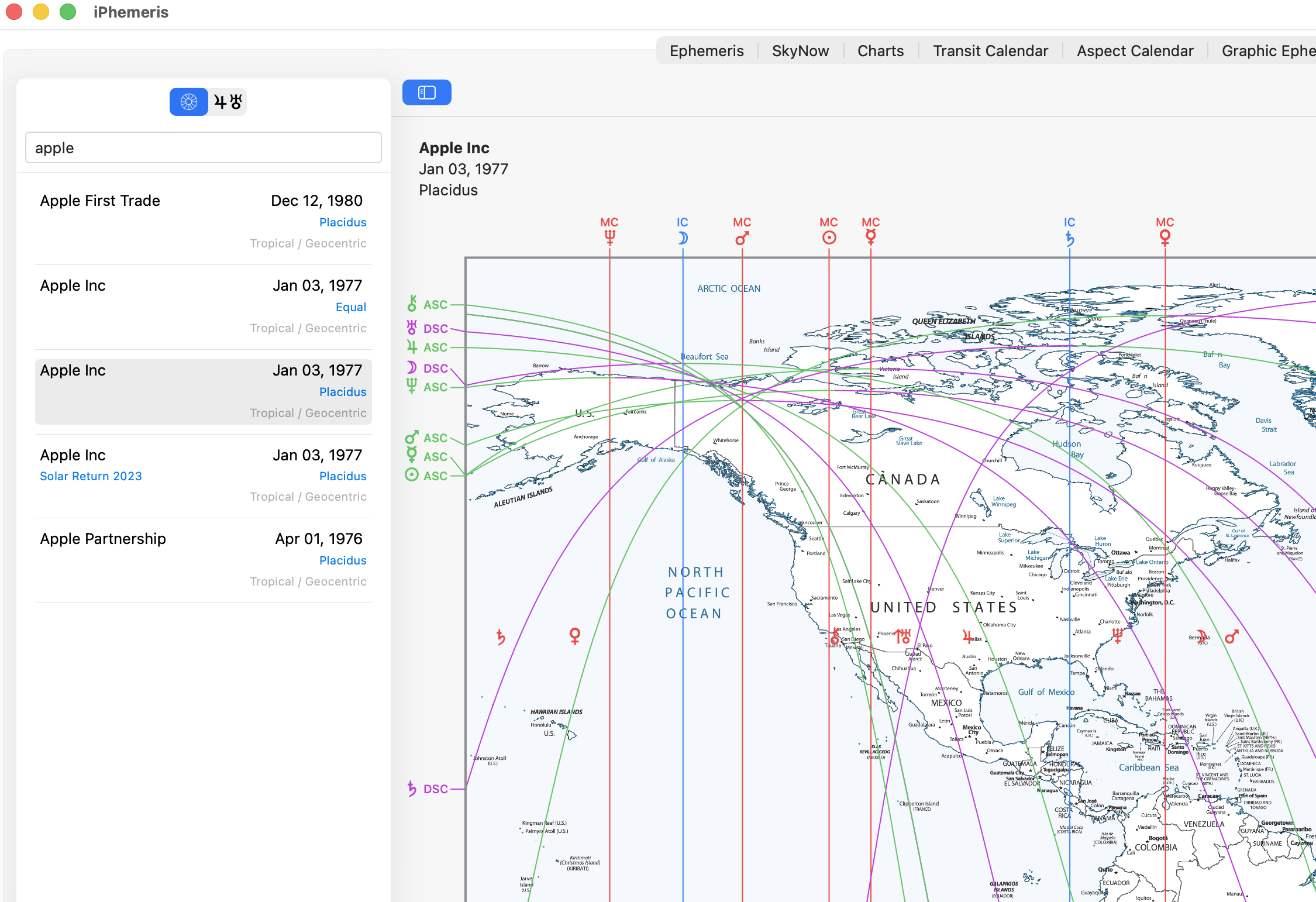
AstroCartography is a branch of astrology that maps a natal chart onto the Earth, showing where each planet was rising, setting, culminating (Midheaven), or at the IC at the moment of the chart time. It is also sometimes referred to as Location Astrology. These planetary lines are used to explore locations that may be especially favorable for living, working, relationships, travel, or personal growth.
How to Use It
The interface is relatively simple and exactly the same on both Mac and iPhone/iPad.
On Mac and iPad the controls are on the left:
- The list of your saved charts.
- The planet and points selector used to indicate which lines should be shown.
To use the feature, tap a natal chart in the list and the Asc, Dsc, MC and IC lines for that chart will be displayed on the map.
Although AstroCartography can be calculated for almost any chart, it is most commonly used with natal charts to identify locations around the world where particular planetary energies are emphasized.
Zoom Controls
Once lines are being displayed on the map, use the zoom controls to zoom in and out and focus on a specific location. You may zoom into city level.
You can also drag the map using your mouse or touch gestures to explore different locations.
How to Read the Map
The lines show the locations on Earth where each selected planet or point was rising, setting, on the Midheaven (MC), or on the Imum Coeli (IC) at the moment of the chart.
- Ascendant (Asc) Lines – Places where a planet was rising at your birth. These locations emphasize self-expression, identity, physical presence, and new beginnings.
- Descendant (Dsc) Lines – Places where a planet was setting at your birth. These lines highlight relationships, partnerships, and how you interact with other people.
- Midheaven (MC) Lines – Places where a planet was at its highest point in the sky. These locations are associated with career, reputation, public life, ambition, and achievement.
- Imum Coeli (IC) Lines – Places where a planet was at the lowest point beneath the horizon. These lines emphasize home, family, roots, inner life, and emotional security.
Calendars
Aspect Calendar
The Aspect Calendar shows the relationship between bodies in the sky on a particular date.
- Any Planet or Point can be turned ON or OFF in the Planets & Chart Points section of Settings.
- Orbs for aspects are set in the Orbs section of Settings.
- Navigation is the same as for the Ephemeris.
Transit Calendar
The Transit Calendar shows a full month of daily Transits between bodies in the sky and a Radix Chart you specify.
- The Radix Chart is set in Settings and is a Chart from your Chart library.
- Data to the left of the aspect glyph shows positions for things in the sky on that date.
- Data to the right of the aspect glyph shows positions of aspected bodies in the Radix Chart.
- Planets and Points can be turned ON/OFF in Settings. There are separate settings for things in the sky
and things in the Radix. - Orbs used by Transit Calendar can be adjusted in the Orbs section of Settings.
- Navigation is the same as for the Ephemeris.
iOS Houses Now
Houses Now displays a continuously updating list of House Cusps using the House System and Location specified in Settings. It uses the same settings as Sky Now, set in the Sky Now section of Settings.
- When Location Services are available it uses current location.
- When Location Services are not available or it is locked to a fixed location, it uses the Place specified in Settings.
- iPhemeris is shipped with a default location set to New York City. Change it in Settings.
- The display updates every 5 seconds.
Note: If location is not updating and you think it should, check that you have allowed iPhemeris to use your location in iPhone Settings.
iCloud
iPhemeris uses iCloud to backup and share your astrological charts between iPhemeris on all your devices. By default, iPhemeris enables itself to save your charts to your iCloud account. We do not recommend disabling this. iCloud is the only form of backup that iPhemeris uses, and requires minimal storage. If you turn it off, you could lose all your chart data if something happens to iPhemeris or your device.
iCloud Trouble Shooting
Handling Duplicate Charts
Duplicate charts sometimes happen, particularly if you turned iCloud OFF on some device or rarely during OS updating if iCloud gets temporarily turned off. The safest course to clean these up is to follow these steps:
- Make sure iPhemeris is allowed to use iCloud on ALL devices running iPhemeris.
- Make sure all devices have a good internet connection. If devices are using mobile connections only, then data over mobile must be enabled.
- Be sure that all devices are finished updating and have had time to re-sync. This can take several hours and it is best to wait 24 hours to make sure everything is done.
- If after 24 hours the duplicates remain, choose one and only one device and delete the duplicates. Deletions will automatically propagate to all your other devices.
Turning iCloud Storage Off
This is not recommended. Turning iCloud OFF means that you will have no backup for your astrology charts and if something happens to your system or iPhemeris on your device, you will not be able to recover chart data unless the system is fully backed up some other way.
iCloud Trouble Shooting
iPhemeris will never delete your chart data for any reason. Only you can delete charts. Therefore if you are not seeing charts on a new device or after an upgrade of iOS check all of the following:
- You are logged into iCloud.
- You are logged into the same iCloud account you used on the previous device.
- You have an internet connection.
- Any WIFI connection will work.
- If the connection is mobile only make sure that data over mobile is enabled and that iPhemeris is allowed to use it. The settings to enable iPhemeris to use mobile data are typically in the cellular section of iOS Settings App. Chart syncing requires mobile data when the connection is exclusively mobile (no WIFI).
- If the first 3 are OK and you still cannot save charts, check that you have not exceeded your iCloud storage limit.
Can't Save Charts
- Check that you have not reached your iCloud storage quota. If you are out of storage iPhemeris will fail silently. The simplest solution is to free up space by deleting something.
- iCloud sync and storage cache can sometimes become corrupt, but rare. This can be fixed by simply logging out of iCloud and back in again.
Symbols
Planets & Points
| Symbol | Name | |||
|---|---|---|---|---|
| J | Sun | Soleil | Sol | Sonne |
| N | Moon | Lune | Luna | Mond |
| K | Mercury | Mercure | Mercurio | Merkur |
| L | Venus | Venus | Venus | Venus |
| [ | Earth | Terre | Tierra | Erde |
| O | Mars | Mars | Marte | Mars |
| P | Jupiter | Jupiter | Jupiter | Jupiter |
| Q | Saturn | Saturne | Saturno | Saturn |
| R | Uranus | Uranus | Urano | Uranus |
| S | Neptune | Neptune | Neptuneo | Neptun |
| T | Pluto | Pluton | Pluton | Pluto |
| : | Pluto (esoteric) | Pluton | Pluton | Pluto |
| U | Chiron | Chiron | Chiron | Chiron |
| V | Vesta | Vesta | Vesta | Vesta |
| W | Pallas | Pallas | Pallas | Pallas |
| X | Juno | Juno | Juno | Juno |
| Y | Ceres | Ceres | Ceres | Ceres |
| Z | Cupido | Cupido | Cupido | Cupido |
| ^ | Astraea | Astraea | Astraea | Astraea |
| _ | Hygiea | Hygiea | Hygiea | Hygiea |
| ` | Eris | Eris | Eris | Eris |
| a | Eris (Alternate) | Eris (alt) | Eris (alt) | Eris (alt) |
| b | Sedna | Sedna | Sedna | Sedna |
| ~ | Pholus | Pholus | Pholus | Pholus |
| m | Eros | Eros | Eros | Eros |
| c | Vulcan | Vulcain | Vulcano | Vulkan |
| 4 | Vulcan (Alternate) | Vulcain | Vulcano | Vulkan |
| 9 | Black Moon (Lilith) | Lune Noire | Luna Negro | Schwarze Mond |
| l | White Moon (Selena) | Lune blanche | Luna Blanca | Weißer Mond |
| ] | N. Node | Noeud N. | Nodo N. | N. Mondknoten |
| \ | S. Node | Noeud S. | Nodo S. | S. Mondknoten |
| - | Ascendant | Ascendant | Ascendente | Aufwind |
| 3 | Descendant | Descendant | Descendiente | Absteigend |
| . | Mid Chart | Mid Chart | Mid Chart | Mid Chart |
| / | Imum Coeli | Fond du Ciel | Imum Coeli | Imum Coeli |
| 2 | Vertex | Vertex | Vertex | Vertex |
| 1 | Part of Fortune | Pt. Fortune | Pt. Fortune | Teil Glücks |
| 0 | Retrograde | Retrograde | Retrógrada | Umgekehrt |
Uranian (Hamburg) Hypothetical Bodies
These are now known not to exist, however some users have asked so we include them with an 'All Access' subscription.
| Symbol | Name | |||
|---|---|---|---|---|
| d | Cupido | Cupidon | Cupido | Cupido |
| e | Hades | Hadès | Infierno | Hades |
| f | Zeus | Zeus | Zeus | Zeus |
| g | Kronos | Kronos | Krono | Kronos |
| h | Apollon | Apollon | Apolo | Apollon |
| i | Admetos | Admète | Admeto | Admetos |
| j | Vulkanus | Vulcain | Vulcano | Vulcanus |
| k | Poseidon | Poséidon | Poseidón | Poseidon |
Aspects
| Symbol | Angle | Name | |||
|---|---|---|---|---|---|
| @ | 0° | Conjunction | Conjonction | Conjuncion | Konjunktion |
| A | 30° | Semisextile | Semisextile | Semisextil | Halbsextal |
| n | 36° | Decile | Decile | Decile | Decile |
| ? | 40° | Novile | Novile | Novil | Novile |
| B | 45° | Semi-square | Semi-carre | Semi-cuadratura | Halbquad- ratisch |
| p | 51.4° | Septile | Septile | Septile | Septile |
| C | 60° | Sextile | Sextile | Sextil | Sextaler |
| D | 72° | Quintile | Quintile | Quintil | Quitil |
| = | 80° | Bi-Novile | Bi-Novile | Bi-Novil | Bi-Novile |
| E | 90° | Square | Carre | Cuadratura | Quadratisch |
| o | 108° | TreDecile | TreDecile | TreDecile | TreDecile |
| F | 120° | Trine | Trigone | Trigono | Trigon |
| G | 135° | Sesqui-square | Sesqui-carre | Sesqui- cuadratura | Anderthal- bquadratisch |
| < | 144° | Bi-Quintile | Bi-Quintile | Bi-Quintile | Bi-Quintile |
| H | 150° | Quincunx | Quinconce | Quinconce | Quincunx |
| > | 160° | Quad-Novile | Quad-Novile | Cuad-Novil | Quad-Novile |
| q | 165° | QuinDecile | QuinDecile | QuinDecile | QuinDecile |
| I | 180° | Opposition | Opposition | Opposicion | Opposition |
| r | 0° | Parallel | Parallel | Parallel | Parallel |
| s | 180° | Contra-parallel | Contra-parallel | Contra-parallel | Contra-parallel |
Signs
| Symbol | Name | |||
|---|---|---|---|---|
| ! | Aries | Belier | Aries | Widder |
| " | Taurus | Taureau | Tauro | Stier |
| # | Gemini | Gemeaux | Geminis | Zwillinge |
| $ | Cancer | Cancer | Cancer | Krebs |
| % | Leo | Lion | Leo | Lowe |
| & | Virgo | Vierge | Virgo | Jungfrau |
| ' | Libra | Balance | Libra | Waage |
| ( | Scorpio | Scorpion | Escorpion | Skorpion |
| ) | Sagittarius | Sagittaire | Sagitario | Schutze |
| * | Capricorn | Capricorne | Capricornio | Steinbock |
| + | Aquarius | Verseau | Aquario | Wassermann |
| , | Pisces | Poissons | Piscis | Fische |
Vedic
Ayanamsa
| Ayanamsa | Degree Offset From Tropical Epoch 2000 |
|---|---|
| D.K. * | 28.37194647 |
| Fagan Bradley | 24.73666667 |
| Lahiri | 23.85305556 |
| Krishnamurti | 23.76194444 |
| Galactic | 25.00000000 |
| Raman | 22.40694444 |
| Takra I | 24.50027778 |
| Takra II | 24.54222222 |
| Babylonian | 24.78666667 |
| Deluce | 27.80555556 |
| Larry Ely | 28.00361111 |
| Yukteshwar | 22.47777981 |
| Sassanian | 19.99222425 |
| Ushashashi | 20.05639092 |
| Hipparchus | 20.24611314 |
| Dhira | 23.06666870 |
| Krushna | 22.95166870 |
* Courtesy of Keith Bailey who made available the date for the first decanate of the Age of Aquarius from some unpublished writings and instructions of the Master D.K. that were entrusted to his care.
Copyright & Trademark
iPhemeris® © 2008 - 2026 Clifford Ribaudo & iPhemeris LLC. All rights reserved.
iPhemeris® and the iPhemeris logo are Registered Trademarks of Clifford Ribaudo & iPhemeris LLC.